
Mach-Lee
Well-Known Member
- First Name
- Lee
- Joined
- Jul 16, 2021
- Threads
- 262
- Messages
- 11,349
- Reaction score
- 24,971
- Location
- Wisconsin
- Vehicles
- 2022 Mach-E Premium AWD
- Occupation
- Sci/Eng

- Thread starter
- #1
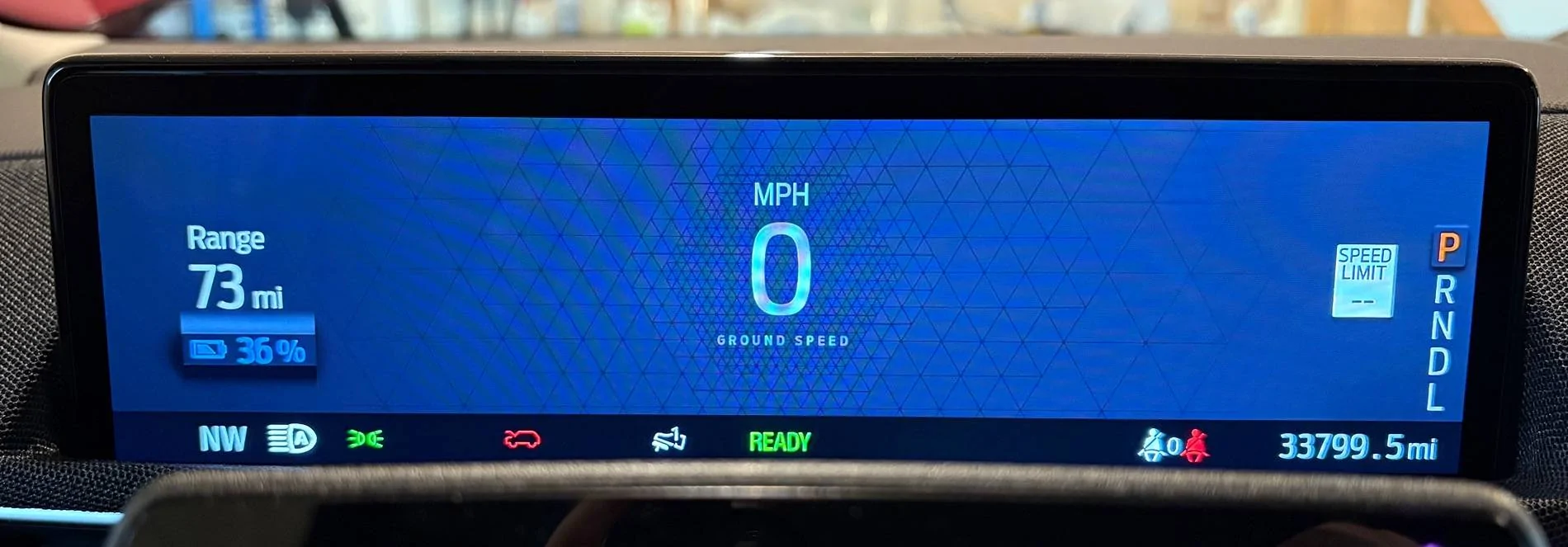
The fix for the speedometer stuck at 1 MPH and the off-center speedometer is finally available! The relevant modules need to be updated to latest software.
| TECHNICAL SERVICE BULLETIN Various Instrument Panel Cluster (IPC) Concerns | 25-2277 23 June 2025 | |||||||||||
Model:
Markets: North American markets only Issue: Some of the vehicles listed in the Model statement above may exhibit at least one of the following conditions: • Speedometer stays at 1 mph (1 km/h) when the vehicle is stopped • Speedometer lags during deceleration and acceleration • Car image in the center of the IPC is always displayed • Speedometer is delayed in displaying on bootup • IPC bootup is delayed when attempting to start the vehicle directly from accessory mode • IPC is stuck on the charging/accessory screen when placed in Drive/ready to drive • After vehicle start up, the lane keeping system status telltale briefly displays • Buzz noise from the IPC that changes with the brightness setting This may be due to the software in the IPC. Action: For vehicles that meet all of the criteria in the Issue and Model statements, follow the Service Procedure to reprogram the IPC. NOTE: The IPC software update that addresses the symptoms listed in this article may have been sent via a software update delivered OTA to connected vehicles that have automatic updates enabled through the vehicle's center display screen. Enter the VIN in PTS and check the OTA Dashboard under the Connected Vehicle tab for OTA update history. If an update to the IPC has successfully completed recently and the customer is reporting the symptoms are no longer present, this article may not apply. Warranty Status: Eligible under provisions of New Vehicle Limited Warranty (NVLW)/Service Part Warranty (SPW)/Service Part New Vehicle (SPNV)/Extended Service Plan (ESP) coverage. Limits/policies/prior approvals are not altered by a TSB. NVLW/SPW/SPNV/ESP coverage limits are determined by the identified causal part and verified using the OASIS part coverage tool. Labor Times
Service Procedure NOTE: The time required to complete this procedure varies depending on several factors including the number of module software updates required, available internet bandwidth, USB flash drive variability, and the potential that CAN flashing (software update via the DLC with FDRS) may be required. Connect to the internet with an ethernet cable, use a USB 3.2 Gen 2 or higher flash drive. When performing USB software updates, using high speed USB ports on the laptop is recommended for faster file transfer. 1. Start an FDRS session and navigate to Toolbox tab > Datalogger > body control module (BCM) and select the BATT_SOC PID. Verify the PID reads 50% or higher. NOTE: Connecting the battery charger negative clamp directly to the battery negative terminal might result in the SOC PID not immediately reflecting the improvement from charging. (1). If SOC is less than 50%, charge the battery by attaching the battery charger's negative clamp to the engine or chassis ground and not the negative battery terminal. Refer to WSM, Section 414-01. (2). If the battery is unable to achieve a 50% SOC, use the Rotunda GRX-3590 or DCA-8000 testers to verify if replacement is required. • If the battery does not need to be replaced, disconnect the Rotunda charger and perform a BMS reset using the FDRS scan tool. • If the battery is replaced, fully charge the new battery, disconnect the Rotunda charger and perform a BMS reset using the FDRS scan tool. • Claim the battery testing and replacement outside of this article. 2. Reconnect the battery charger and set it to maintain a vehicle voltage of 12.6-13.6 volts. A low battery voltage or SOC while performing a software update to any module may result in a repeat "Restart Required" message in the vehicle's center display screen or a message on the FDRS saying "Part Number Validation Failed" or "DID Validation Failed". 3. Run the "Read The Configuration Data" app in FDRS, located in Toolbox > Multi-Module tab. 4. Navigate to the SW Updates tab. Is there a software update available for any of the following modules? GWM APIM TCU IPC (1). Yes - proceed to Step 5. (2). No - this article does not apply. 5. Prepare to update the software for the GWM, APIM, TCU, and IPC. (1). A 64GB or larger USB flash drive is required for GWM, APIM, TCU, and IPC software updates. USB 3.2 Gen 2 or higher is recommended for faster file transfer on both the computer port and the USBdrive. (2). Make sure the USB flash drive being used is formatted correctly. To see the available drives, hold down the Windows icon keyboard key and press the E keyboard key. Right click on the USB flash drive and select Properties. If File System under the General tab is not exFAT, the drive must be formatted. (3). To format the USB flash drive: • Right click on the USB flash drive. • Select Format, select exFAT for the File System. • Select Default Allocation Size for the Allocation Unit Size. (4). De-selecting Quick Format is not necessary and results in a lengthier operation. 6. Using the FDRS, begin module programming by selecting the "SW Updates" tab. Follow all on-screen instructions carefully. 7. When prompted, connect the USB flash drive to the FDRS. 8. When prompted by the FDRS, safely remove/eject the USB flash drive from the FDRS. Start the vehicle ( KOER) then connect the USB flash drive to the USB media hub to install the software into the module. When the USB software update begins, the center display screen displays a message stating “Do Not Remove USB”. The update may take 10 minutes or longer to complete. NOTE: It may take up to 5 minutes for the vehicle to recognize the USB flash drive with software update. 9. When the vehicle's center display screen prompts to restart the vehicle: (1). Turn the vehicle OFF. (2). Wait 10 minutes. (3). Restart the vehicle (KOER). The update is still in process at this time. 10. Follow FDRS on-screen prompts to complete the update. NOTE: It may take up to 5 minutes before "Update Successful" appears in the vehicle's center display screen. After 5 minutes if "Update Successful" pop-up is not shown on the center display screen, remove the USB flash drive and select YES on the FDRS prompt stating “Was The USB Update Successful” ( FDRS verifies if the module software update was successfully installed on the module). NOTE: The IPC module needs to be updated via USB and CAN. 11. Perform the software update for the GWM. Follow all update screens. If there is no GWM software update available, proceed to Step 12. (1). Follow the center display screen prompts. (2). Follow FDRS prompts to complete the GWM programming. • Once the pop up stating "Update Successful" appears in the center display screen, select Close, remove the USB flash drive from the USB media hub, and select Yes on FDRS indicating the update installed successfully. This initiates the remaining automated configuration steps and reports the module software part numbers and application software levels to the Ford online database. Failure to follow this step results in an inaccurate database as well as omitted, improperly installed, or improperly configured applications (features) such as navigation (if equipped). It is normal for the module to reset during this step. (3). Proceed to Step 12. 12. Perform the software update for the APIM. Follow all update screens. If there is no APIM software update available, proceed to Step 13. (1). Follow the center display screen prompts. (2). Follow FDRS prompts to complete the APIM programming. • Once the pop up stating "Update Successful" appears in the center display screen, select Close, remove the USB flash drive from the USB media hub, and select Yes on FDRS indicating the update installed successfully. This initiates the remaining automated configuration steps and reports the module software part numbers and application software levels to the Ford online database. Failure to follow this step results in an inaccurate database as well as omitted, improperly installed, or improperly configured applications (features) such as navigation (if equipped). It is normal for the module to reset during this step. (3). Proceed to Step 13. 13. Perform the software update for the TCU. Follow all update screens. If there is no TCU software update available, proceed to Step 14. (1). Follow the center display screen prompts. (2). Follow FDRS prompts to complete the TCU programming. • Once the pop up stating "Update Successful" appears in the center display screen, select Close, remove the USB flash drive from the USB media hub, and select Yes on FDRS indicating the update installed successfully. This initiates the remaining automated configuration steps and reports the module software part numbers and application software levels to the Ford online database. Failure to follow this step results in an inaccurate database as well as omitted, improperly installed, or improperly configured applications (features) such as navigation (if equipped). It is normal for the module to reset during this step. (3). Proceed to Step 14. 14. Perform the software update for the IPC. Follow all update screens. If there is no IPC software update available, proceed to Step 15. (1). Follow the center display screen prompts. (2). Follow FDRS prompts to complete the IPC programming. • Once the pop up stating "Update Successful" appears in the center display screen, select Close, remove the USB flash drive from the USB media hub, and select Yes on FDRS indicating the update installed successfully. This initiates the remaining automated configuration steps and reports the module software part numbers and application software levels to the Ford online database. Failure to follow this step results in an inaccurate database as well as omitted, improperly installed, or improperly configured applications (features) such as navigation (if equipped). It is normal for the module to reset during this step. (3). Proceed to Step 15. 15. Are there any updates available for the GWM, APIM, TCU, and/or IPC? NOTE: The option to update a module may not be available until other module(s) are updated to a certain level. The network test is a confirmation that all modules are at the latest available software. Some repairs may require multiple network tests to reveal all module dependant software. (1). Yes - proceed to Step 11. (2). No - repair is complete. |
Sponsored
Attachments
-
68.4 KB Views: 358