generaltso

Well-Known Member
Joined
Jun 24, 2020
Threads
76
Messages
15,389
Reaction score
28,696
Location
Vermont
Vehicles
2024 Kia EV9 GT-Line
Country flag
How do I know if my MY21 has received the required BCM update?
Hit the emergency escape button inside the frunk and listen. Alternatively, you can enter your unlock code on the door pillar immediately followed by the 7-8 button.
Sponsored


Jimrpa

Well-Known Member
First Name
Jim
Joined
Sep 10, 2020
Threads
297
Messages
9,573
Reaction score
12,901
Location
Wayne, PA
Vehicles
2021 Infinite Blue Premium Mustang Mach E ER AWD
Occupation
Retied (formerly tried to herd highly technical, independent cats)
Country flag
[QUOTE="Mirak, post: 776946, member: 1583"
PLEASE PIN TRUNK ACCESS TO THE TOP RIBBON OF HOME SCREEN, @Ford Motor Company.
@Jimrpa You’ve been officially been succeeded.?
[/QUOTE]
@Mirak asked for Trunk access. I want the infinitely more useful Frunk access button on the top ribbon ?
 
Last edited:

JPT

Active Member
First Name
John
Joined
Feb 5, 2023
Threads
7
Messages
29
Reaction score
57
Location
Des Moines, Iowa
Vehicles
Audi Q5 and Caddie DTS
Occupation
Mechanical Engineer
Country flag
Ford, thanks for the update directly to this Forum. I think its very helpful to have your active participation. Nice updates however these appear to be extreme out fringe fixes/enhancements. The kind that don't take very long to do but adds to a list to make it look like more has been done than really has. It would be nice if Ford would let us see the development list and let the actual Users weigh in on it.
 

Schmedlack

Well-Known Member
First Name
Joe
Joined
Oct 22, 2020
Threads
0
Messages
282
Reaction score
333
Location
Dundalk, MD
Vehicles
2014 Ford Escape S 1925 Ford Tudor (2-door)
Occupation
Trader
Hit the emergency escape button inside the frunk and listen. Alternatively, you can enter your unlock code on the door pillar immediately followed by the 7-8 button.
Yes it works.... Thank you my friend, I didn't know about that feature until you mentioned it here.


Robob

Well-Known Member
First Name
Rob
Joined
May 29, 2023
Threads
3
Messages
241
Reaction score
164
Location
Vermont
Vehicles
23’ GT Cyber Orange
Occupation
Auto Parts, Paint & Tech
Country flag
Still not showing this APIM update in FDRS, is there any specific date it will be available to everyone?
 

LeanneL

Well-Known Member
First Name
Leanne
Joined
Jun 5, 2022
Threads
6
Messages
382
Reaction score
322
Location
Surrey, BC Canada
Vehicles
2023 GTP
Occupation
Nurse
Country flag
43241.PNG


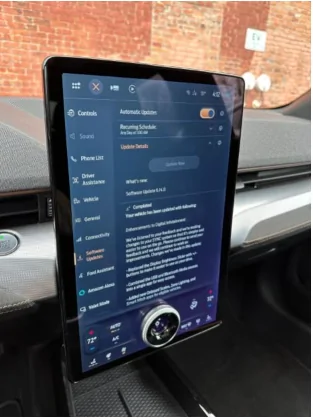
Hi owners! We’re happy to announce that Software Update 6.14 is rolling out to Mustang Mach-Es. What you share with us in these owner forums and through In-Vehicle Voice Feedback are direct inputs to some of these changes, and we appreciate your continued passion for building an electric future alongside us. The update brings the following:
  • Replaced the Display Brightness Slider with +/- buttons to make it easier to use on your drive.
  • Combined the USB and Bluetooth media sources into a single app for easy access.
  • Moved the Sketch app into the “Entertainment” page so it’s easier to find.
  • Updated the icons on the top bar to make them easier to see.
  • Added a phone battery icon on the phone app screens.
  • The Public Charging application, previously known as Charge Assist, can be located in your application drawer, where other apps live.
  • You can now start and pay for charging on the BlueOval™ Charge Network without requiring a smartphone. Filter by charge speed and network while staying informed about real-time information about new chargers, such as availability and those under repair.
  • A new map view has been added, allowing you to visibly search for nearby chargers and quickly see what’s available.
  • Frunk Release – For MY21 and MY21.5 that have had the BCM update (which opens the frunk electronically), this update adds the button to their SYNC screen.

Software updates are designed to help make your vehicle better over time. We want to make sure you are getting the latest and greatest new features and improvements like this delivered to your vehicle.
As a friendly reminder make sure you:
  1. Have Automatic Software Updates turned ON – this keeps updates coming as they roll out.
  2. Set a Recurring Schedule – software updates may happen seamlessly in the background while you are driving, while others may require you to park and exit your vehicle so set the schedule for a time when you know you won’t need to drive the vehicle, like overnight.
 
Below is a quick step-by-step and here is a video of how to do this and some things to know about software updates on your vehicle.
 
How-To Guide:
Turn ON Automatic Software Updates
  • Go to “Settings” on your vehicle’s SYNC screen
  • Choose “Software Updates”
  • Toggle “Automatic Updates” to ON
Set a Recurring Schedule
  • Go to “Settings” on your vehicle’s SYNC screen
  • Choose “Software Updates”
  • Press “Schedule Updates” or “Recurring Update Schedule”
 
Things to Know:
  • Don’t skip your Automatic Software Updates – this impacts all future updates.
  • If an update requires you to be parked, you will receive a reminder in your vehicle (24 hours prior) and in your FordPass App. You can reschedule up to 2 mins before the update begins.
  • Software updates are not deployed to all vehicles at the same time and are done on a rolling basis – for example, your neighbor might get an update before you do.
  • While not required, we recommend connecting to WiFi for an improved update experience. If Wi-Fi is not available, your update will be delivered using the built-in cellular connection with your vehicle modem.
 
So, turn ON your Automatic Software Updates, set your schedule and let the updates roll in!

Fun story..... I am on 6.14 but do not have the Charge Assist or Public Charging icon at all!
 

Nikos

Well-Known Member
Joined
Dec 29, 2019
Threads
2
Messages
594
Reaction score
547
Location
Taylors SC
Vehicles
17 Must GT, 21MME AWD, 22 F-150 Lightning
Occupation
Aircraft Mechanic
Country flag
43241.PNG


Hi owners! We’re happy to announce that Software Update 6.14 is rolling out to Mustang Mach-Es. What you share with us in these owner forums and through In-Vehicle Voice Feedback are direct inputs to some of these changes, and we appreciate your continued passion for building an electric future alongside us. The update brings the following:
  • Replaced the Display Brightness Slider with +/- buttons to make it easier to use on your drive.
  • Combined the USB and Bluetooth media sources into a single app for easy access.
  • Moved the Sketch app into the “Entertainment” page so it’s easier to find.
  • Updated the icons on the top bar to make them easier to see.
  • Added a phone battery icon on the phone app screens.
  • The Public Charging application, previously known as Charge Assist, can be located in your application drawer, where other apps live.
  • You can now start and pay for charging on the BlueOval™ Charge Network without requiring a smartphone. Filter by charge speed and network while staying informed about real-time information about new chargers, such as availability and those under repair.
  • A new map view has been added, allowing you to visibly search for nearby chargers and quickly see what’s available.
  • Frunk Release – For MY21 and MY21.5 that have had the BCM update (which opens the frunk electronically), this update adds the button to their SYNC screen.

Software updates are designed to help make your vehicle better over time. We want to make sure you are getting the latest and greatest new features and improvements like this delivered to your vehicle.
As a friendly reminder make sure you:
  1. Have Automatic Software Updates turned ON – this keeps updates coming as they roll out.
  2. Set a Recurring Schedule – software updates may happen seamlessly in the background while you are driving, while others may require you to park and exit your vehicle so set the schedule for a time when you know you won’t need to drive the vehicle, like overnight.
 
Below is a quick step-by-step and here is a video of how to do this and some things to know about software updates on your vehicle.
 
How-To Guide:
Turn ON Automatic Software Updates
  • Go to “Settings” on your vehicle’s SYNC screen
  • Choose “Software Updates”
  • Toggle “Automatic Updates” to ON
Set a Recurring Schedule
  • Go to “Settings” on your vehicle’s SYNC screen
  • Choose “Software Updates”
  • Press “Schedule Updates” or “Recurring Update Schedule”
 
Things to Know:
  • Don’t skip your Automatic Software Updates – this impacts all future updates.
  • If an update requires you to be parked, you will receive a reminder in your vehicle (24 hours prior) and in your FordPass App. You can reschedule up to 2 mins before the update begins.
  • Software updates are not deployed to all vehicles at the same time and are done on a rolling basis – for example, your neighbor might get an update before you do.
  • While not required, we recommend connecting to WiFi for an improved update experience. If Wi-Fi is not available, your update will be delivered using the built-in cellular connection with your vehicle modem.
 
So, turn ON your Automatic Software Updates, set your schedule and let the updates roll in!
My MME is a 2021 early edition. Produced in early Jan and delivered in Feb of 2021. I received the update for the remote frunk operation. It does not work. Although there is a button on my FordPass screen, the function is not active. Is there a setting in the Sync display also to activate it??
 

Nikos

Well-Known Member
Joined
Dec 29, 2019
Threads
2
Messages
594
Reaction score
547
Location
Taylors SC
Vehicles
17 Must GT, 21MME AWD, 22 F-150 Lightning
Occupation
Aircraft Mechanic
Country flag
But when are we going to get the update that lets google maps read the battery SoC for trip planning? That's the one I'm waiting for.
I am on the same boat, also. My last trip to Louisiana, 1200 miles, I used Android Auto and Google maps because that was the option the vehicle defaulted to. Google knows all the available chargers along my route but could not determine the SOC or to precondition the battery for the eventual charging. It could do other things, like start a charge and stop one, but not to precondition the battery or show the SOC of the battery.
 

echeck

Well-Known Member
First Name
Eric
Joined
Feb 28, 2021
Threads
1
Messages
48
Reaction score
105
Location
Maryland
Vehicles
2023 Mach E GT
Country flag
43241.PNG


Hi owners! We’re happy to announce that Software Update 6.14 is rolling out to Mustang Mach-Es. What you share with us in these owner forums and through In-Vehicle Voice Feedback are direct inputs to some of these changes, and we appreciate your continued passion for building an electric future alongside us. The update brings the following:
  • Replaced the Display Brightness Slider with +/- buttons to make it easier to use on your drive.
  • Combined the USB and Bluetooth media sources into a single app for easy access.
  • Moved the Sketch app into the “Entertainment” page so it’s easier to find.
  • Updated the icons on the top bar to make them easier to see.
  • Added a phone battery icon on the phone app screens.
  • The Public Charging application, previously known as Charge Assist, can be located in your application drawer, where other apps live.
  • You can now start and pay for charging on the BlueOval™ Charge Network without requiring a smartphone. Filter by charge speed and network while staying informed about real-time information about new chargers, such as availability and those under repair.
  • A new map view has been added, allowing you to visibly search for nearby chargers and quickly see what’s available.
  • Frunk Release – For MY21 and MY21.5 that have had the BCM update (which opens the frunk electronically), this update adds the button to their SYNC screen.

Software updates are designed to help make your vehicle better over time. We want to make sure you are getting the latest and greatest new features and improvements like this delivered to your vehicle.
As a friendly reminder make sure you:
  1. Have Automatic Software Updates turned ON – this keeps updates coming as they roll out.
  2. Set a Recurring Schedule – software updates may happen seamlessly in the background while you are driving, while others may require you to park and exit your vehicle so set the schedule for a time when you know you won’t need to drive the vehicle, like overnight.
 
Below is a quick step-by-step and here is a video of how to do this and some things to know about software updates on your vehicle.
 
How-To Guide:
Turn ON Automatic Software Updates
  • Go to “Settings” on your vehicle’s SYNC screen
  • Choose “Software Updates”
  • Toggle “Automatic Updates” to ON
Set a Recurring Schedule
  • Go to “Settings” on your vehicle’s SYNC screen
  • Choose “Software Updates”
  • Press “Schedule Updates” or “Recurring Update Schedule”
 
Things to Know:
  • Don’t skip your Automatic Software Updates – this impacts all future updates.
  • If an update requires you to be parked, you will receive a reminder in your vehicle (24 hours prior) and in your FordPass App. You can reschedule up to 2 mins before the update begins.
  • Software updates are not deployed to all vehicles at the same time and are done on a rolling basis – for example, your neighbor might get an update before you do.
  • While not required, we recommend connecting to WiFi for an improved update experience. If Wi-Fi is not available, your update will be delivered using the built-in cellular connection with your vehicle modem.
 
So, turn ON your Automatic Software Updates, set your schedule and let the updates roll in!
Appreciate the updates! Looking forward to more coming down the line!
 

generaltso

Well-Known Member
Joined
Jun 24, 2020
Threads
76
Messages
15,389
Reaction score
28,696
Location
Vermont
Vehicles
2024 Kia EV9 GT-Line
Country flag
My MME is a 2021 early edition. Produced in early Jan and delivered in Feb of 2021. I received the update for the remote frunk operation. It does not work. Although there is a button on my FordPass screen, the function is not active. Is there a setting in the Sync display also to activate it??
Sounds like you may be missing a BCM update. When you press the emergency release button inside the frunk, does it make a noise?
 

Jimrpa

Well-Known Member
First Name
Jim
Joined
Sep 10, 2020
Threads
297
Messages
9,573
Reaction score
12,901
Location
Wayne, PA
Vehicles
2021 Infinite Blue Premium Mustang Mach E ER AWD
Occupation
Retied (formerly tried to herd highly technical, independent cats)
Country flag
43241.PNG


Hi owners! We’re happy to announce that Software Update 6.14 is rolling out to Mustang Mach-Es. What you share with us in these owner forums and through In-Vehicle Voice Feedback are direct inputs to some of these changes, and we appreciate your continued passion for building an electric future alongside us. The update brings the following:
  • Replaced the Display Brightness Slider with +/- buttons to make it easier to use on your drive.
  • Combined the USB and Bluetooth media sources into a single app for easy access.
  • Moved the Sketch app into the “Entertainment” page so it’s easier to find.
  • Updated the icons on the top bar to make them easier to see.
  • Added a phone battery icon on the phone app screens.
  • The Public Charging application, previously known as Charge Assist, can be located in your application drawer, where other apps live.
  • You can now start and pay for charging on the BlueOval™ Charge Network without requiring a smartphone. Filter by charge speed and network while staying informed about real-time information about new chargers, such as availability and those under repair.
  • A new map view has been added, allowing you to visibly search for nearby chargers and quickly see what’s available.
  • Frunk Release – For MY21 and MY21.5 that have had the BCM update (which opens the frunk electronically), this update adds the button to their SYNC screen.

Software updates are designed to help make your vehicle better over time. We want to make sure you are getting the latest and greatest new features and improvements like this delivered to your vehicle.
As a friendly reminder make sure you:
  1. Have Automatic Software Updates turned ON – this keeps updates coming as they roll out.
  2. Set a Recurring Schedule – software updates may happen seamlessly in the background while you are driving, while others may require you to park and exit your vehicle so set the schedule for a time when you know you won’t need to drive the vehicle, like overnight.
 
Below is a quick step-by-step and here is a video of how to do this and some things to know about software updates on your vehicle.
 
How-To Guide:
Turn ON Automatic Software Updates
  • Go to “Settings” on your vehicle’s SYNC screen
  • Choose “Software Updates”
  • Toggle “Automatic Updates” to ON
Set a Recurring Schedule
  • Go to “Settings” on your vehicle’s SYNC screen
  • Choose “Software Updates”
  • Press “Schedule Updates” or “Recurring Update Schedule”
 
Things to Know:
  • Don’t skip your Automatic Software Updates – this impacts all future updates.
  • If an update requires you to be parked, you will receive a reminder in your vehicle (24 hours prior) and in your FordPass App. You can reschedule up to 2 mins before the update begins.
  • Software updates are not deployed to all vehicles at the same time and are done on a rolling basis – for example, your neighbor might get an update before you do.
  • While not required, we recommend connecting to WiFi for an improved update experience. If Wi-Fi is not available, your update will be delivered using the built-in cellular connection with your vehicle modem.
 
So, turn ON your Automatic Software Updates, set your schedule and let the updates roll in!
I, for one, cannot wait to get this update. I'm so tired of having to hunt all over in Sync for the sketch app ?
 

ShaggySS

Well-Known Member
First Name
Scott
Joined
Jul 21, 2022
Threads
7
Messages
484
Reaction score
534
Location
Roseville, CA
Vehicles
2022 Mach-E Premium RWD
Occupation
IT Nerd
Country flag
Since everyone else is providing feedback, I think the navigation map should have different color icons for charging. One color for L2 charging and one for DCFC

Overall, I like the changes to the icons on the top, and combining Bluetooth and USB makes sense. Thanks for continuing to take feedback and provide updates.
Sponsored


Top